
Use AI Models with GitHub Copilot Subscription
Use AI models with your GitHub Copilot subscription in TalkCody
You can use your GitHub Copilot subscription quota directly in TalkCody without purchasing additional API credits.
How It Works
TalkCody uses the official Device Code Flow provided by GitHub for authentication. This is the authentication method recommended by GitHub for desktop apps and CLI tools.
The authentication flow is as follows:
- TalkCody obtains a User Code and Verification URI
- Automatically opens your browser to the GitHub device authorization page
- You enter the displayed user code in your browser and complete authorization
- TalkCody polls to obtain the access token and completes authentication
GitHub Copilot uses the same authentication mechanism as GitHub CLI (gh) and VS Code Copilot.
Terms of Use & Disclaimer
Important: Please read the following terms carefully before using this feature.
This feature is designed for personal development use only, limited to your own GitHub Copilot subscription. By using this feature, you agree to:
Permitted Uses
- ✅ Personal coding assistance and productivity enhancement
- ✅ Compliance with GitHub Copilot's rate limits and usage policies
- ✅ Not using access rights for commercial services or resale
- ✅ Adherence to GitHub Copilot Terms of Use and Usage Policy
Prohibited Uses
- ❌ Commercial API resale or white-label services
- ❌ High-concurrency automated requests beyond personal use
- ❌ Using one subscription to serve multiple users
- ❌ Any behavior that violates GitHub's Acceptable Use Policy
Disclaimer
- This project is not affiliated with GitHub in any way
- GitHub Copilot is a trademark of GitHub
- This is an independent open-source project, not endorsed, sponsored, or affiliated with GitHub
- Violation of GitHub's Terms of Service may result in account restrictions
For production or commercial use, please purchase official API credits through the GitHub Copilot API.
Configuration Steps
Open Settings
- Launch TalkCody
- Click the Settings icon on the left
- Navigate to the API Keys page
- Find the GitHub Copilot section
Agree to Disclaimer
After clicking the Sign in with GitHub button, a disclaimer dialog will appear.
Please read the terms carefully, check the agreement option, and click Confirm to continue.
Obtain User Code
The system will automatically request a device code from GitHub. After success, you will see:
- User Code: An 8-character code (e.g.,
ABCD-1234) - Verification URI: GitHub device authorization page
The system will automatically open the verification page in your browser.
If the browser doesn't open automatically, you can click the "Re-open Link" button on the interface to open it manually.
Enter User Code in Browser
- The browser will automatically open to the GitHub device authorization page (https://github.com/login/device)
- In the input field shown on the page, enter the user code from Step 3
- Click Continue or Authorize button
Confirm Authorization
- If you haven't authorized this app before, GitHub will prompt you to confirm authorization
- Click the Authorize button to grant access to TalkCody
- After successful authorization, the browser will display a success message
Wait for Authentication to Complete
Return to TalkCody, the system is polling and waiting for authorization:
- The interface will show "Waiting for authorization..." or "Exchanging authorization code..."
- After successful authorization, the status will change to Connected
If you closed the authorization page in your browser, you can click the "Connect" button on the interface to retry polling.
Enable Copilot Model Features
This step is very important - GitHub Copilot may not have all models enabled by default.
- Open GitHub Copilot Feature Settings
- Make sure to enable the model options you want to use
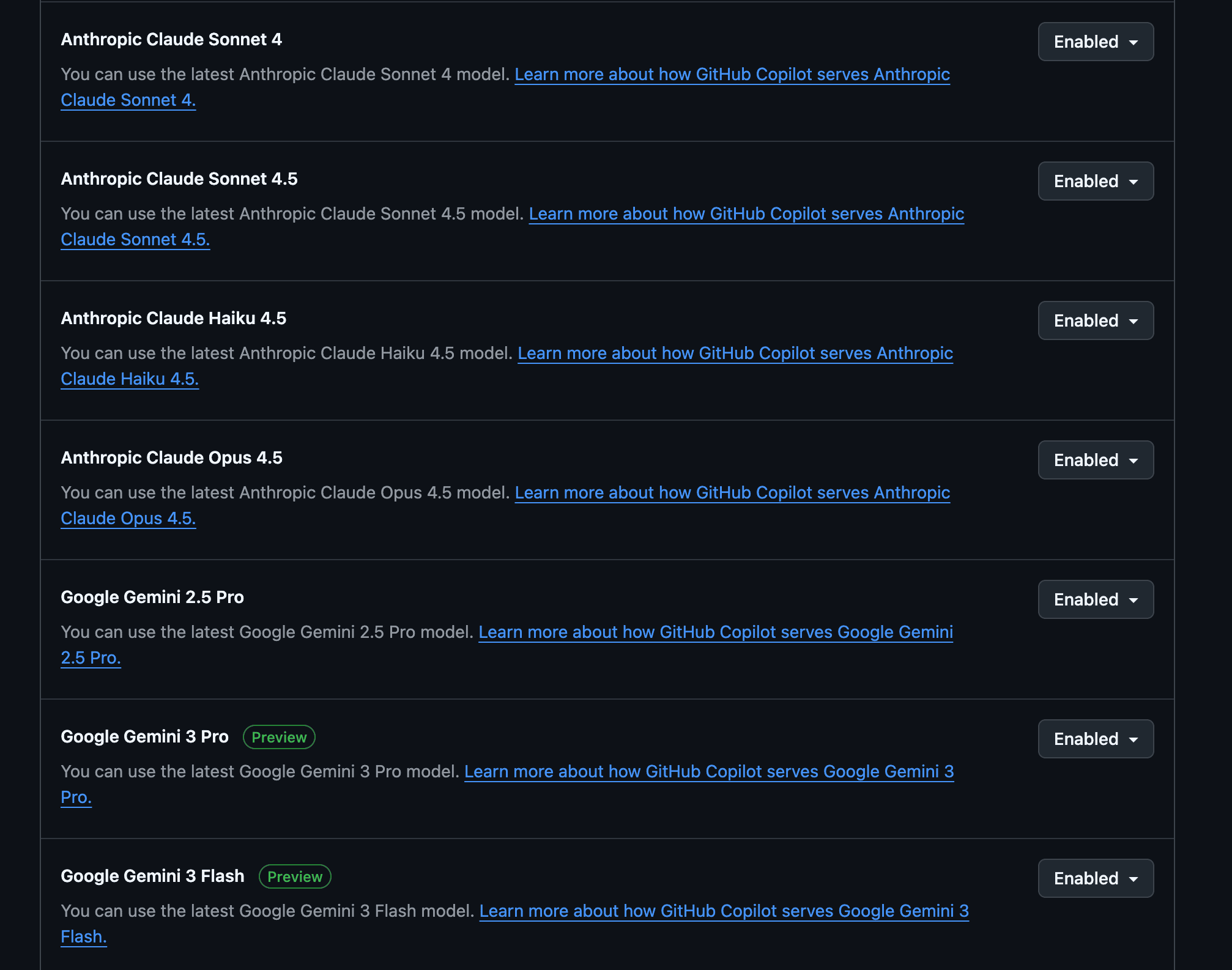
Verify Connection
After successful authorization, you will see:
- Connection status shows as Connected
- You can view available Copilot models in the model selector
- You can start using GitHub Copilot for conversations
After successful authentication, tokens will refresh automatically, no need to log in repeatedly. However, please note that if you change model permissions in your GitHub settings, you may need to log in again to obtain new model access permissions.
View Usage
TalkCody provides a Usage Dashboard that allows you to monitor your GitHub Copilot subscription usage in real-time.
Access Usage Dashboard
- Click the Usage icon in the left navigation bar
- Select the GitHub Copilot tab to view GitHub Copilot usage
Usage Metrics Explained
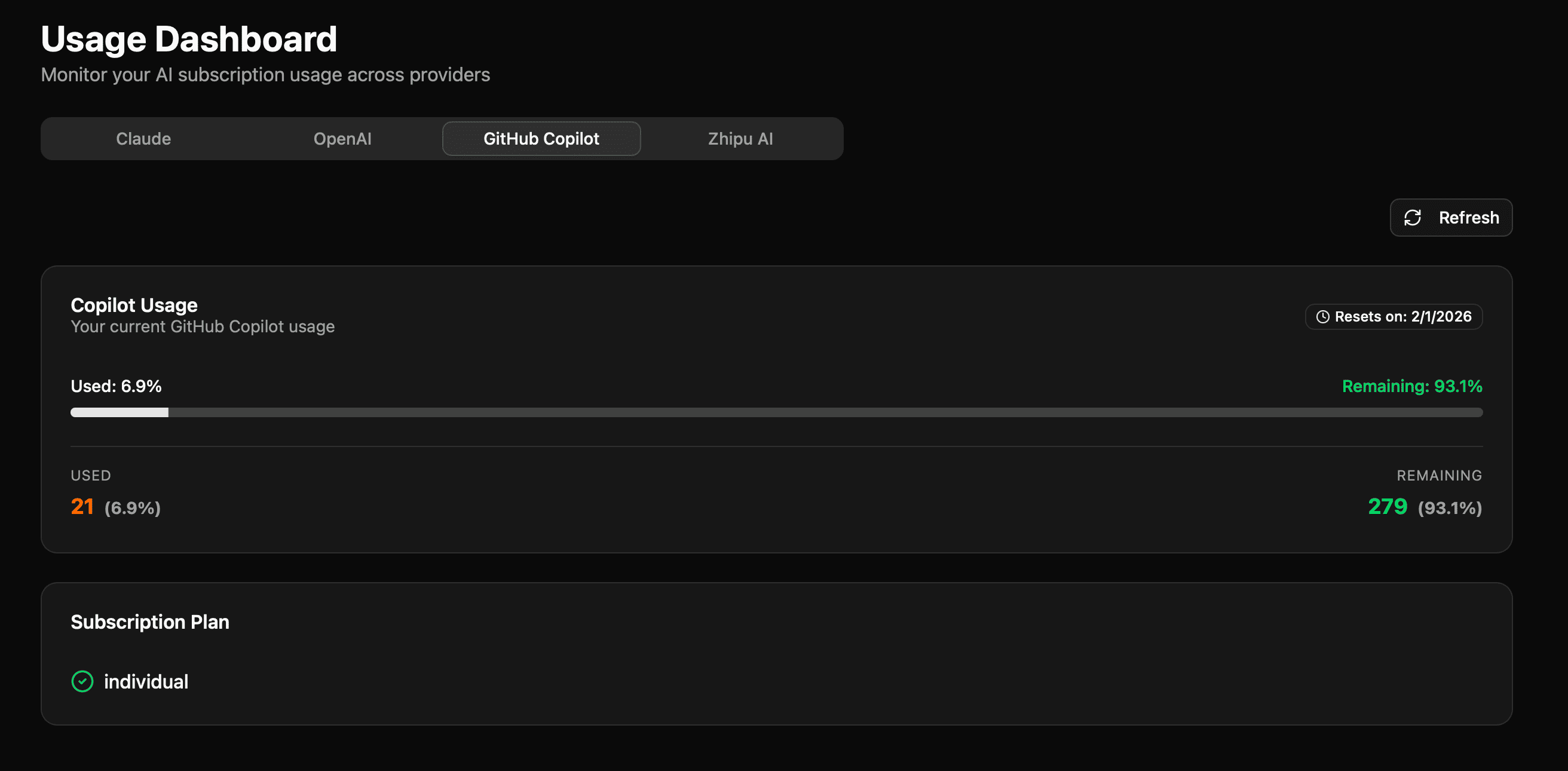
The dashboard displays the following metrics:
Overall Usage
- Usage Percentage: API usage percentage for the current billing cycle
- Used Quota: Specific number of requests already used
- Remaining Quota: Number of remaining available requests
- Reset Date: Date of next quota reset
Quota Details
The dashboard displays detailed quota information:
- Used: Number of requests used (in orange) and percentage
- Remaining: Number of remaining requests (in green) and percentage
Refresh Usage
Click the Refresh button in the top right corner to manually update usage data.
FAQ
Why don't I see any available models?
Please check the following:
- Confirm model features are enabled: Visit GitHub Copilot Feature Settings and make sure relevant models are enabled
- Confirm subscription status: Make sure your GitHub account has a valid Copilot subscription
- Re-login: After changing model settings, you may need to log in again to refresh permissions
What GitHub Copilot models are supported?
GitHub Copilot supports multiple models, depending on your subscription type and region:
- Copilot Chat: Suitable for code conversations and Q&A
- Copilot Editing: Suitable for code completion and editing suggestions
You can view and select available model options in your GitHub settings.
Can I use this on multiple devices?
GitHub Copilot subscriptions typically support multiple device usage, but:
- Personal version: Can be used on multiple devices, but only one active session at a time
- Enterprise version: May have restrictions based on organization policy
Please note that each time you use it on a new device, you need to complete the device code authorization flow.
What if authentication expires?
If authentication expires (usually after a few hours):
- TalkCody will automatically try to refresh the token
- If automatic refresh fails, you need to complete the device code authorization flow again
- Simply click the "Sign in with GitHub" button again