
AI Model Settings
Configure TalkCody's AI models to choose the best fit for your needs
Model Types Overview
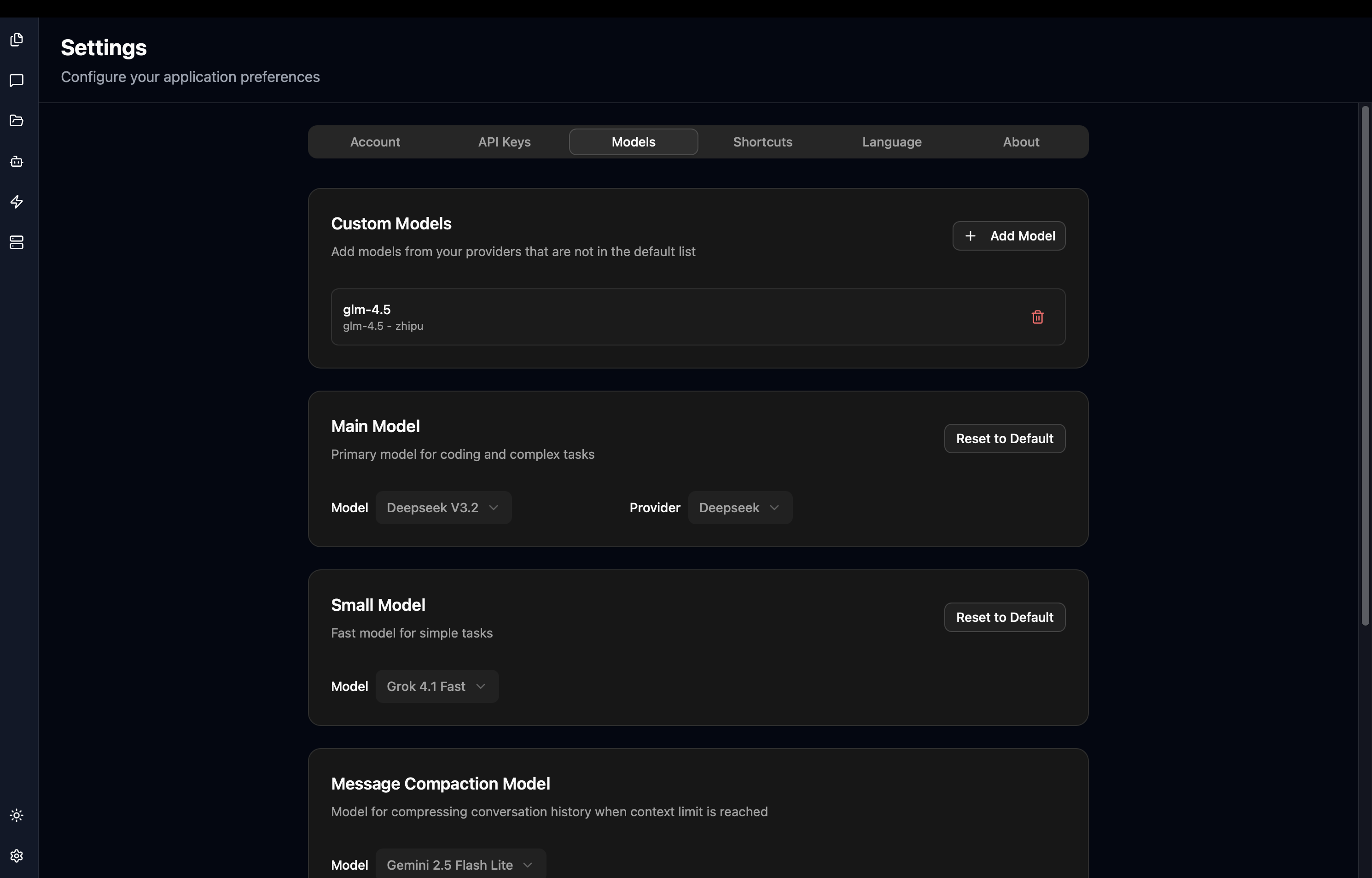
TalkCody supports configuring different AI models for different tasks to optimize performance and cost:
| Model Type | Purpose | Default Model |
|---|---|---|
| Main Model | Complex reasoning, coding, and analysis tasks | Claude Haiku |
| Small Model | Simple tasks and quick responses | Gemini 2.5 Flash Lite |
| Message Compaction | Compress conversation history to save tokens | Gemini 2.5 Flash Lite |
| Image Generator | Generate images from text descriptions | Nano Banana Pro |
| Transcription | Convert speech/audio to text | Scribe V2 Realtime |
Each model type has a default value. If you don't configure it, TalkCody will automatically use the default model.
Configuring Models
Settings Path: Settings → Model Settings
Main Model
The main model handles complex reasoning, coding, and analysis tasks. This is TalkCody's core model - we recommend choosing a capable model.
Recommended Models:
- Claude 4.5 Sonnet or Claude 4.5 Opus (strong reasoning capabilities)
- GPT 5.1 Codex (excellent at bug fixing)
- Gemini 3 Pro (strong frontend development capabilities)
Small Model
The small model handles simple tasks and scenarios requiring quick responses, such as code completion suggestions and simple Q&A.
Recommended Models:
- Gemini 2.5 Flash Lite (fast and low cost)
- Grok Code Fast (suitable for code-related tasks)
- DeepSeek V3 (excellent agent capabilities)
Using a small model can significantly reduce API costs while maintaining good response speed.
Message Compaction
When conversation history becomes too long, TalkCody uses this model to compress historical messages, saving tokens while maintaining context relevance.
Recommended Models:
- Gemini 2.5 Flash Lite (low cost, fast)
Image Generator
Model for generating images from text descriptions.
Supported Models:
- DALL-E 3 (OpenAI)
- Nano Banana Pro (Banana)
- Other models supporting image output
Only models that support image output will appear in the image generator model selection list.
Transcription
Model for converting speech or audio files to text.
Supported Models:
- Scribe V2 Realtime (Eleven Labs, real-time transcription)
- Whisper (OpenAI)
Only models that support audio input will appear in the transcription model selection list.
Selecting a Provider
When the same model is accessible through multiple providers (e.g., via OpenRouter and official API), you can choose which provider to use.
Select Model
Choose the model you want to use from the model dropdown list.
Select Provider
If the model supports multiple providers, a "Provider" dropdown will appear. Select your preferred provider.
Provider Selection Tips:
- Official API: Best stability, most complete features
- OpenRouter: Potentially better pricing, unified management of multiple models
- Vercel AI Gateway: Suitable for users already using Vercel services
Different providers may have different pricing and speed. Choose the most suitable provider based on your needs.
Adding Custom Models
If the model you need isn't in TalkCody's built-in model list, you can add custom models.
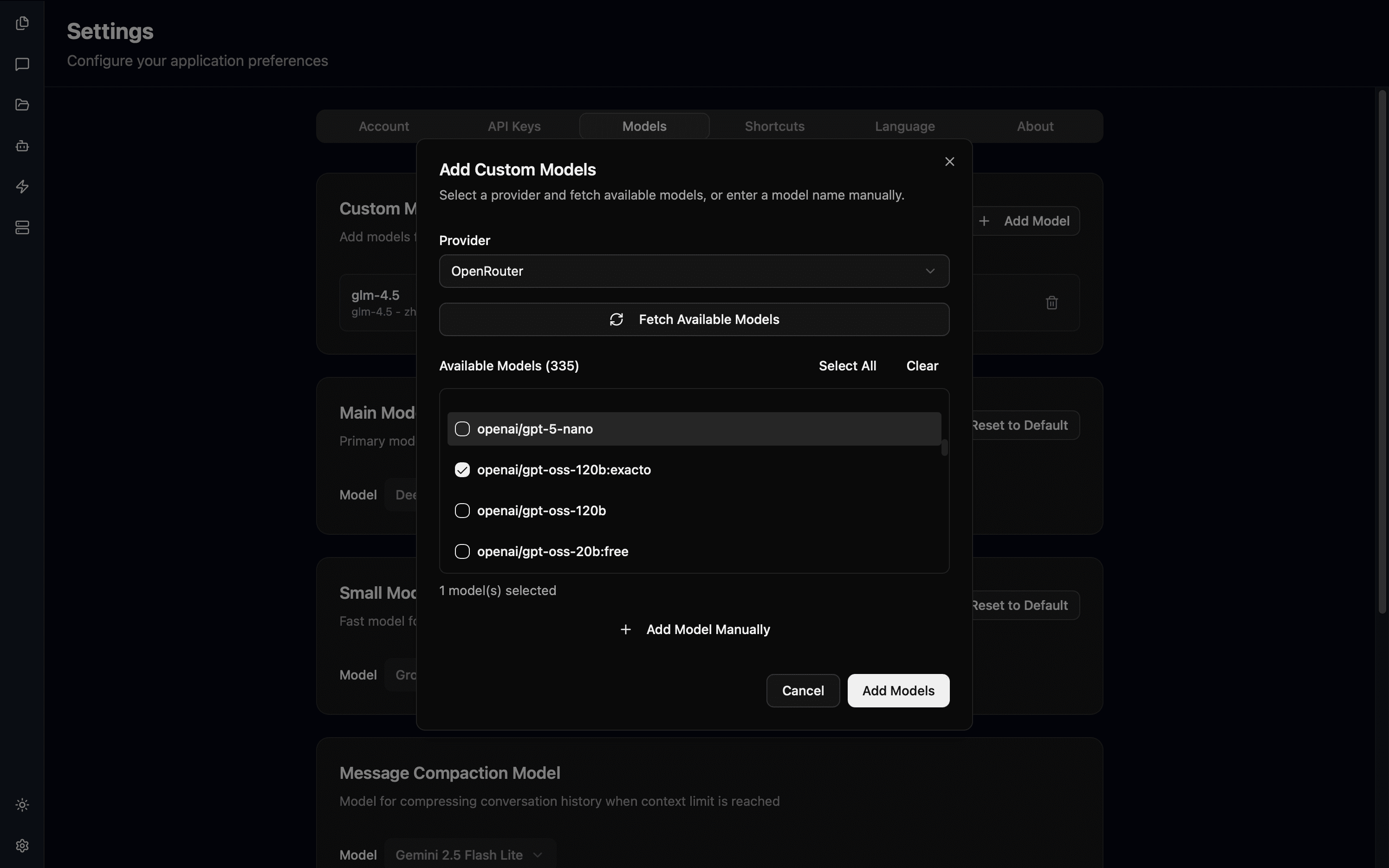
Open Add Dialog
On the model settings page, click the "Add Model" button on the right side of the "Custom Models" section.
Select Provider
In the popup dialog, select the provider the model belongs to (such as OpenAI, Ollama, LM Studio, etc.).
Fetch or Enter Model
Option 1: Auto-fetch Model List
For providers that support model list API (such as Ollama, LM Studio, OpenAI):
- Click the "Fetch Models" button
- The system will automatically retrieve the available model list from that provider
- Check the models you want to add
- Click "Add Models"
Option 2: Manually Enter Model Name
For providers that don't support model list fetching, or if you know the exact model name:
- Enter the model ID in the "Model Name" input field
- Click "Add Models"
Added custom models will appear in all model selection lists, and you can set them as any model type.
FAQ
What if the model list is empty?
Make sure you have configured at least one valid API key in the "API Keys" settings. The model list only shows available models from configured providers.
Why don't certain models appear in the image generator list?
The image generator model list only shows models that support image output. Regular text models won't appear in this list.
Custom model not showing after adding?
- Ensure the provider's API key is correctly configured
- Try refreshing the page
- Check if the model ID is correct (case-sensitive)