
AI Agents
Create and configure specialized AI assistants for different tasks to maximize productivity.
What is an AI Agent?
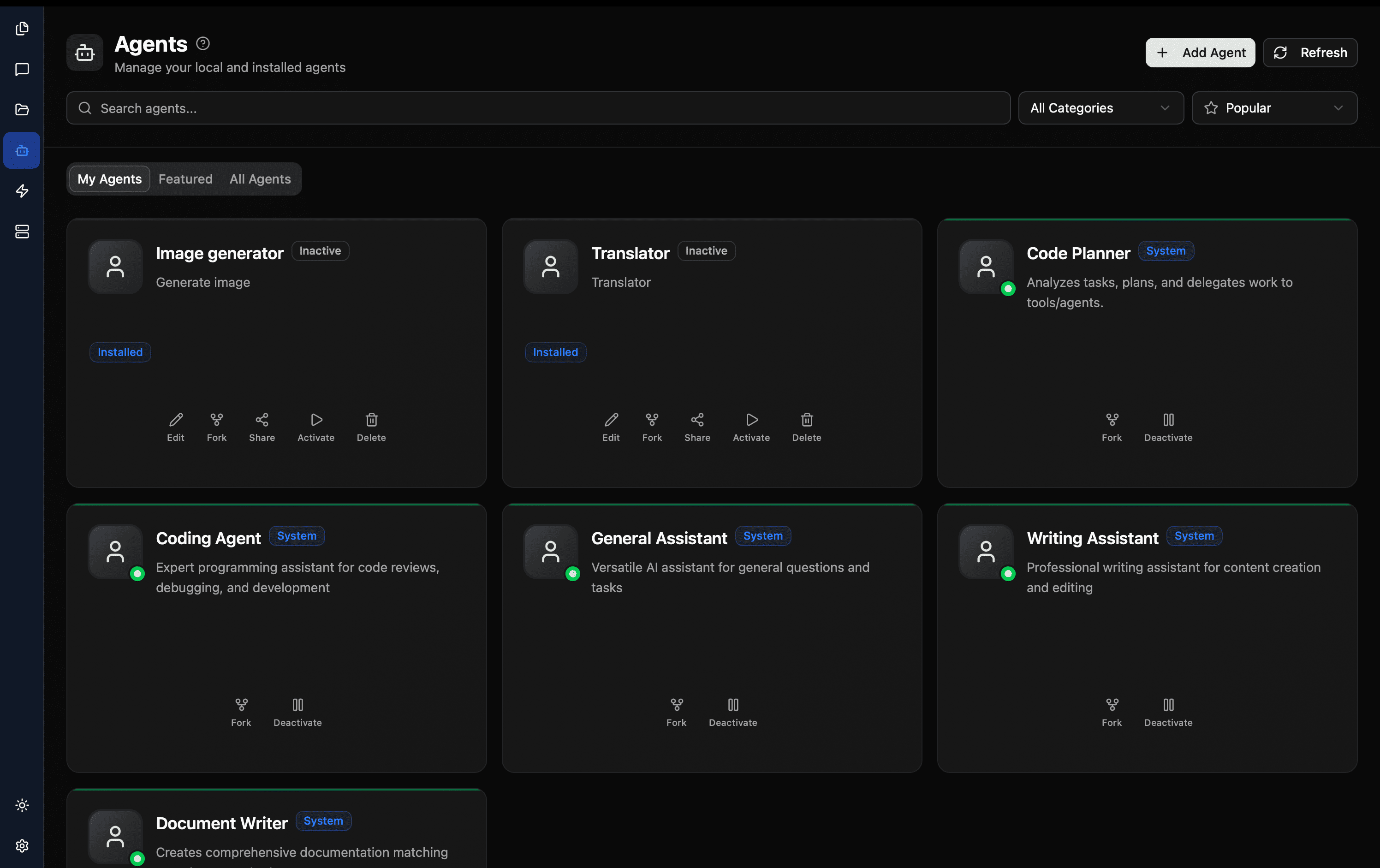
An AI Agent is an AI model instance with the following configurations:
- System Prompt: Instructions that define the agent's behavior and expertise
- Assigned Tools: Capabilities the agent can use (file operations, searches, etc.)
- MCP Tools: Custom tools added through MCP servers
- Default Model: The AI model that powers the agent
- Custom Rules: Specific guidelines for output format and behavior
- Dynamic Context: Whether to dynamically fetch context information for each project
Think of agents as specialized team members, each with their own expertise and responsibilities.
Why Use AI Agents?
Specialization: Each agent focuses on specific tasks
Code Reviewer → Focuses on code quality, patterns, best practices
Test Generator → Creates comprehensive unit and integration tests
Documentation Writer → Produces clear, well-structured documentation
Bug Finder → Analyzes code for potential issues and vulnerabilitiesConsistency: Agents provide consistent behavior based on their configuration
Efficiency: Switch between agents instead of re-explaining context
Tool Control: Grant different capabilities to different agents
Creating Custom Agents
Navigate to Agents View
- Open TalkCody
- Click on the Agents tab in the sidebar
- Click + New Agent
Configure Basic Settings
Agent Name
- Descriptive name (e.g., "React Expert", "API Tester")
- Appears in the agent selector
Description (optional)
- Brief explanation of the agent's purpose
- Helps you remember what each agent does
Write the System Prompt
The system prompt defines the agent's behavior:
Example: Code Reviewer Agent
You are an experienced code reviewer focused on quality and best practices.

When reviewing code:
1. Check for bugs and logic errors
2. Evaluate code style and consistency
3. Suggest performance improvements
4. Identify security vulnerabilities
5. Recommend better patterns when applicable

Always:
- Be constructive and specific
- Explain the reasoning behind suggestions
- Provide code examples for improvements
- Prioritize critical issues over style preferences
Good system prompts are specific, actionable, and include examples of desired behavior.
Select Model
- Choose the appropriate AI model based on the task: e.g., use Main Models for complex reasoning tasks, Small Models for simple tasks
Assign Tools
Select which tools the agent can use:
File Tools
- ✅ Read File: Read project files
- ✅ Write File: Create new files
- ✅ Edit File: Modify existing files
Search Tools
- ✅ Code Search: Search through codebase
- ✅ File Search: Find files by name/pattern
- ✅ Web Search: Search the internet
Execution Tools
- ✅ Bash Tool: Execute terminal commands
- ✅ Web Fetch: Fetch web page content
Other Tools
- ✅ Call Agent: Invoke other agents
- ✅ Todo Write: Manage task lists
Grant only necessary tools. Limiting tools reduces the chance of unintended actions.
Save and Test
- Click Save Agent
- Select the agent in a chat conversation
- Test it with relevant prompts
- Refine the configuration based on results
Agent Configuration Examples
1. Test Generator Agent
Purpose: Create comprehensive unit tests
System Prompt:
You are a testing expert specialized in writing comprehensive unit tests.

For each function or component you test:
1. Test happy path scenarios
2. Test edge cases and boundary conditions
3. Test error handling
4. Mock external dependencies
5. Use descriptive test names

Follow these conventions:
- Use Jest/Vitest syntax
- Organize tests with describe/it blocks
- Include setup and teardown when needed
- Aim for 80%+ code coverage
- Write tests that are maintainable and clearModel: Main Model Tools: Read File, Write File, Code Search
2. Documentation Writer Agent
Purpose: Write clear technical documentation
System Prompt:
You are a technical writer focused on creating clear, comprehensive documentation.

When writing documentation:
1. Start with a clear overview
2. Include code examples
3. Explain parameters and return values
4. Document edge cases and gotchas
5. Use consistent formatting

Format:
- Use Markdown
- Include table of contents for long docs
- Add code blocks with syntax highlighting
- Use callouts for important notes
- Keep language clear and conciseModel: Small Model Tools: Read File, Write File, Code Search
3. Bug Finder Agent
Purpose: Identify bugs and security issues
System Prompt:
You are a security-conscious code analyst focused on finding bugs and vulnerabilities.

When analyzing code, look for:
1. Logic errors and edge cases
2. Security vulnerabilities (XSS, SQL injection, etc.)
3. Memory leaks and performance issues
4. Race conditions and concurrency bugs
5. Error handling gaps

For each issue found:
- Explain the problem clearly
- Show the exact location (file and line)
- Explain the potential impact
- Provide a fix or mitigation
- Rate severity (Critical/High/Medium/Low)Model: Main Model Tools: Read File, Code Search
Import Agents from GitHub Repository
TalkCody supports importing Claude Code subagent configurations directly from GitHub repositories without manual creation. Simply provide the GitHub repository address and agent file path, and the system will automatically parse the Markdown frontmatter and create the agent.
Supported Format
The standard Claude Code subagent definition: The imported agent file needs to use Markdown format with YAML frontmatter at the beginning:
---
name: Agent Name
description: Agent Description
tools:
  - readFile
  - writeFile
  - codeSearch
model: main_model
role: read
canBeSubagent: true
category: github
---

Here is your system prompt content...
Import Steps
Open Import Interface
- Open TalkCody
- Click on the Agents tab in the sidebar
- Click the Import from GitHub button
Enter Repository Information
Repository Address
- Format:
owner/repository(e.g.,talkcody/agents) - Supports specifying branch:
owner/repository@branch(e.g.,talkcody/agents@main)
File Path
- Single file: Enter the
.mdfile path directly (e.g.,agents/coding/agent.md) - Entire directory: Enter the directory path, the system will automatically scan and import all valid agent files (e.g.,
agents/)
Using directory import is recommended, as it allows you to get all agent configurations from the repository at once.
Confirm and Import
-
Click the Start Import button
-
The system will automatically:
- Try to fetch files from
mainormasterbranch - Parse the frontmatter in Markdown files
- Validate tool configuration and system prompts
- Create the corresponding agents
- Try to fetch files from
-
After import is complete, you can view and manage imported agents in the My Agents tab
Advanced Usage
Import all agents from an entire directory:
repository: talkcody/agents
path: agents/
Import a single agent file:
repository: talkcody/agents
path: agents/coding/coder.md
Imported agents will have dynamic prompt feature enabled by default, fetching context information from the current project's agents.md file.
Install from Remote Agent List
TalkCody provides an agent marketplace that gathers various specialized agents contributed by the community. You can install agents with one click to quickly expand your agent library.
Browse Agent List
Open Agent Marketplace
- Open TalkCody
- Click on the Agents tab in the sidebar
- Switch to the Remote Agents tab
Search and Filter
Search Function
- Enter keywords in the search box
- Supports searching by name, description, and agent ID
Category Filter
- Use the category dropdown to filter specific types of agents
- Categories include: Programming, Testing, Documentation, Security, Analysis, etc.
Refresh List
- Click the refresh button to get the latest agent list
Install Agent
- On the agent detail page or card, click the Install button
- Wait for installation to complete
- After successful installation:
- The agent is automatically added to the My Agents list
- You can start using it immediately
- You can edit the configuration to customize its behavior
Installed agents are exactly the same as agents you create yourself - you can freely edit, copy, or delete them.