Terminal Integration
Use the built-in terminal in TalkCody without switching applications
Opening the Terminal
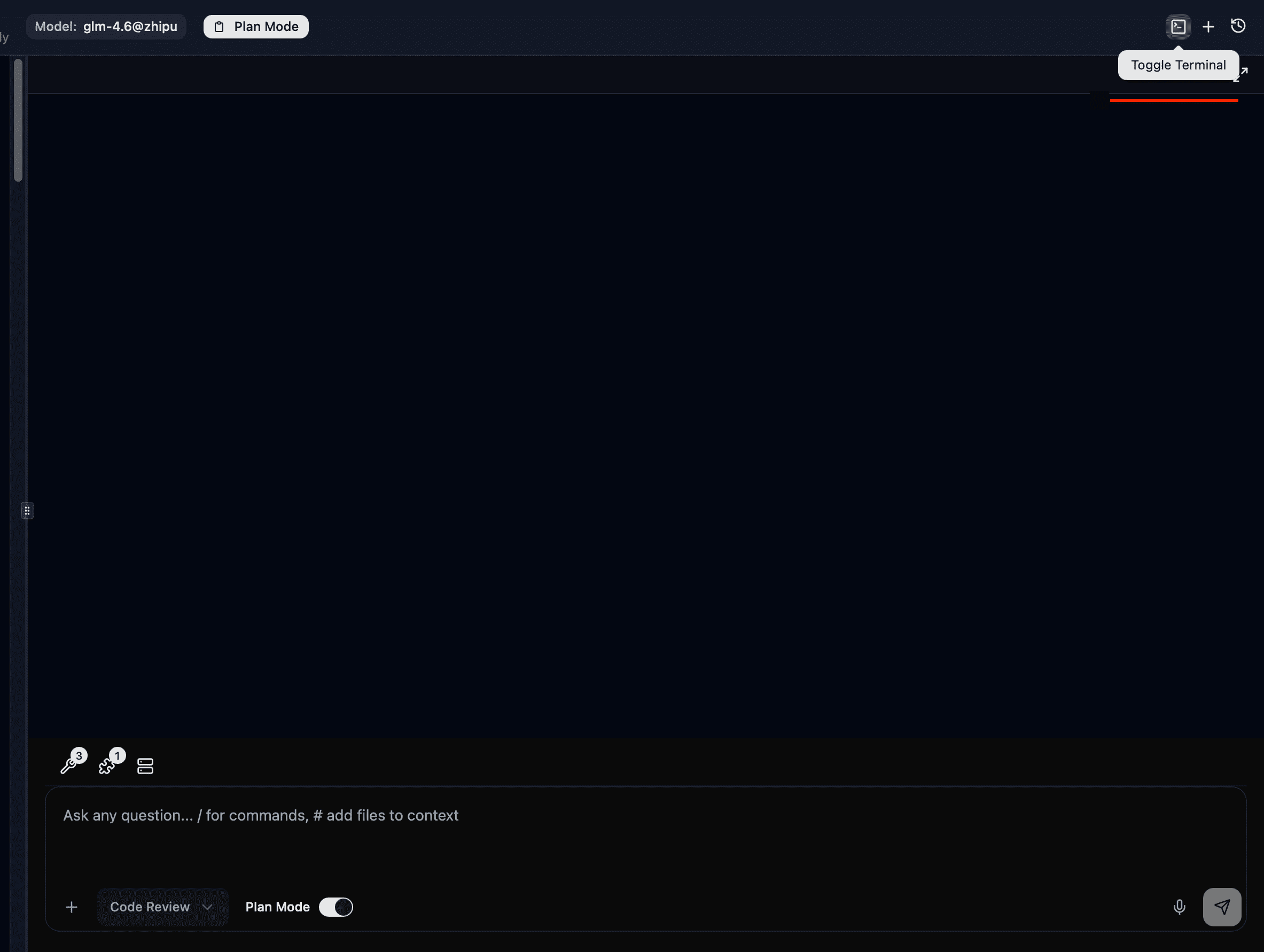
TalkCody has a built-in terminal. You can open it in the following ways:
UI Button
Click the terminal icon button on the right side of the top toolbar.
Keyboard Shortcut
| Platform | Shortcut |
|---|---|
| macOS | Cmd + J |
| Windows/Linux | Ctrl + J |
Multiple Tabs
The terminal supports multiple tabs for running multiple tasks simultaneously:
| Action | macOS | Windows/Linux |
|---|---|---|
| New Tab | Cmd + T | Ctrl + T |
| Next Tab | Cmd + → | Ctrl + → |
| Previous Tab | Cmd + ← | Ctrl + ← |
You can also click the + button in the terminal tab bar to create a new tab, or click the × button on a tab to close it.
Fullscreen Terminal
If you need more terminal space, use the fullscreen feature:
Click the fullscreen button (square icon) in the top right corner of the terminal panel to enter fullscreen mode.
Click again to exit fullscreen.